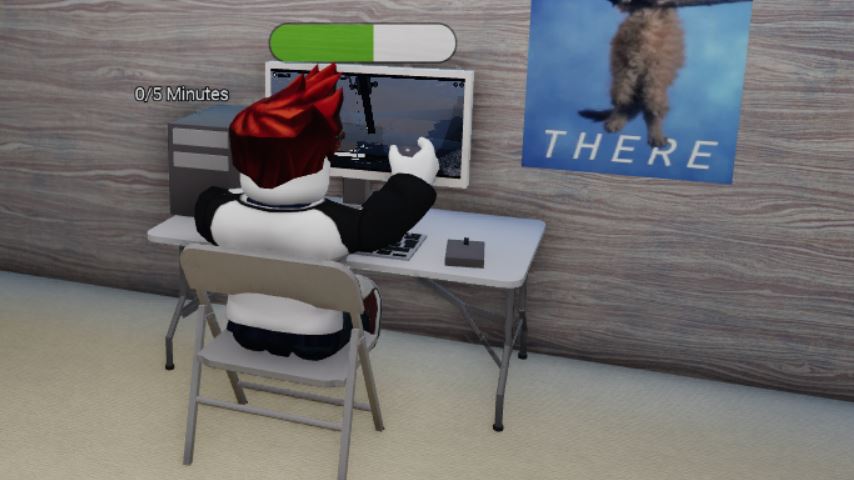
Starting your journey as a virtual influencer in Content Creator Tycoon on Roblox is exciting, but mastering the controls is the first step to building your empire. Whether you’re recording your first video or managing a massive content schedule, knowing which button to press is crucial. This guide breaks down the control schemes for both PC and mobile, so you can focus on what you do best: creating content and gaining subscribers.
Content Creator Tycoon PC Controls Explained
The PC version of Content Creator Tycoon uses a classic Roblox control scheme, optimized for a keyboard and mouse. Here’s a full breakdown of what each key does:
Movement: Use the W, A, S, D keys to move your character forward, left, backward, and right.
Interact (E): Press the E key to interact with objects. This is used for sitting in chairs, using non-computer equipment, and other general interactions.
Upload Videos (F): This is your most important key! Hold down the F key when you are near your computer to start the video upload process. You must hold it until the progress bar completes.
Open Inventory/Shop (I): Press the I key to open your inventory and the in-game shop. This is where you manage your items and purchase new equipment.
Camera Control: Move your mouse to rotate the camera view around your character.
Selecting Items: Use the Left Mouse Button to click on and select items, navigate menus, and place objects in your studio.
Content Creator Tycoon Mobile Controls Explained
The mobile version translates the PC experience into a touch-screen-friendly layout. The functions are the same, but the inputs are different.
Movement: Use the virtual joystick on the left side of your screen to move your character.
Interact (E): A virtual E button will appear on the screen when you are near an interactable object. Tap it to perform the interaction.
Upload Videos: A dedicated “Upload” button will appear when you approach your computer. Tap and hold this button to upload your videos.
Open Inventory/Shop: Tap the inventory or shop icon (usually a backpack or shopping cart symbol) on the screen to open the management menus.
Camera Control: Swipe your finger on the right side of the screen to adjust the camera angle.
Selecting Items: Simply tap on items, buttons, and menu options to select them.
How to Play: The Core Gameplay Loop
Understanding the controls is one thing; knowing how to use them to progress is another. Here’s the basic gameplay loop:
Record a Video: Your character automatically records video content when you are in your studio.
Upload for Cash & Subs: Go to your in-game computer. On PC, hold F. On mobile, tap and hold the Upload button. This will earn you in-game money and subscribers.
Spend Earnings: Press I on PC or the shop icon on mobile to buy better equipment like cameras, lights, and PCs.
Upgrade Your Studio: Better equipment allows you to create higher-quality videos faster, earning more money and subscribers per upload. Repeat this cycle to become the top creator!
FAQ: Content Creator Tycoon Controls
Q: Why can’t I upload my videos?
A: You must be standing directly in front of your computer. On PC, make sure you are holding the F key until the progress bar finishes. On mobile, ensure you are tapping and holding the Upload button.
Q: How do I sit down in my chair?
A: Walk up to the chair and press the E key on PC or tap the virtual E button that appears on your mobile screen.
Q: Are the controls different between PC and mobile?
A: The functions are identical, but the input methods are different. PC uses keyboard keys and mouse movement, while mobile uses a virtual joystick, touch buttons, and swipe gestures.
Q: How do I change my camera view?
A: On PC, simply move your mouse. On mobile, swipe with one finger on the right side of the screen.
Q: What is the most important button to know?
A: The F key (PC) and Upload button (mobile) are the most critical, as they are how you progress in the game by publishing content.
Conclusion
Mastering the controls in Content Creator Tycoon is the foundation for your success. On PC, remember WASD to move, F to upload, and I to shop. On mobile, rely on the virtual joystick and the tap-and-hold upload button. With this guide, you can stop fumbling with buttons and start efficiently growing your channel, buying new gear, and becoming the ultimate content creator tycoon.