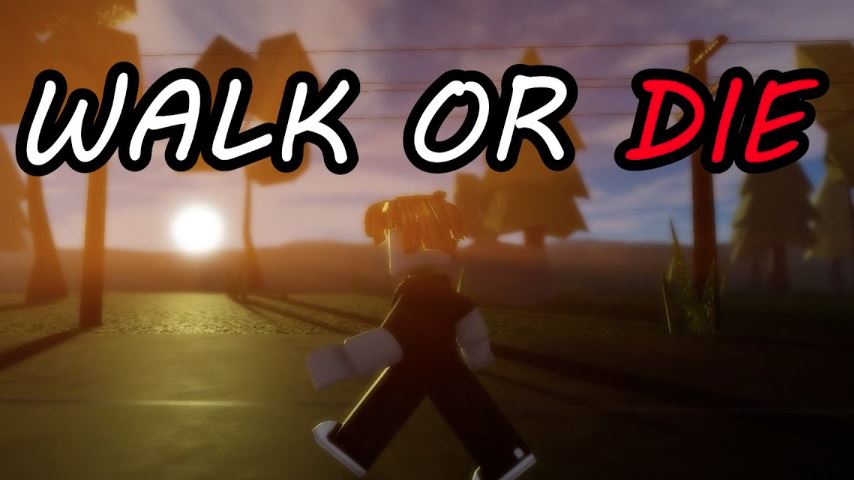
Walk or Die is a Roblox survival game that challenges players to stay in constant motion. Up to 25 players are placed on a long path, and anyone who stops walking for too long will trigger warnings that can lead to instant elimination through gunfire or other traps. Because survival depends heavily on precise movement and stamina management, understanding the control system is essential. This Walk or Die controls guide explains how controls work on both PC and mobile platforms to help players survive longer in each round.
Why Controls Matter in Walk or Die
In Walk or Die, even small mistakes in movement, jumping, or sprinting can result in elimination. Players must carefully manage stamina while maintaining forward momentum. Knowing how to move efficiently, monitor stamina, and respond to warning systems gives players a significant advantage over others who struggle with control mastery.
Walk or Die Controls on PC
PC players rely on keyboard and mouse inputs for precise movement and camera control. Mastering these inputs is crucial for maintaining a steady pace and avoiding unnecessary stamina loss.
PC Movement Controls
W: Move forward
A: Move left
S: Move backward
D: Move right
PC Action Controls
Spacebar: Jump
Mouse: Control camera direction and view angle
Left Shift: Sprint (if available)
Stamina Monitoring on PC
Stamina can be checked by holding the sprint key or by watching the stamina indicator on the HUD. Sprinting drains stamina, so it should be used carefully to avoid sudden slowdowns that may trigger warnings.
Walk or Die Controls on Mobile
On mobile devices, Walk or Die uses touch-based controls designed for accessibility, but precise control is still required to survive.
Mobile Movement Controls
Virtual joystick: Move character in any direction by dragging
Jump button: Perform jumps when needed
Mobile Camera and Sprint
Touch and drag screen: Adjust camera direction
Sprint button: Sprint if the option is available
Stamina Monitoring on Mobile
Mobile players can monitor stamina through the stamina bar or HUD indicator. Managing stamina is just as important as movement, especially during longer survival runs.
Warning System and Elimination Rules
Each player is allowed three warnings per round when they slow down or stop moving. After the third warning, the player is immediately eliminated. This system reinforces the core mechanic of constant movement and punishes hesitation or poor stamina management.
Additional Gameplay Feature: Code Redemption
Walk or Die includes a simple code redemption system. Players can access it through the Shop menu located at the bottom of the screen. By entering valid codes into the available field, players can receive rewards such as in-game currency, which may help improve the overall experience.
Frequently Asked Questions (FAQ)
What happens if I stop moving in Walk or Die?
Stopping or slowing down too long triggers warnings. After three warnings in one round, your character is eliminated.
Is there a difference between PC and mobile controls?
Yes. PC uses keyboard and mouse controls, while mobile relies on a virtual joystick and touch-based inputs. However, both platforms follow the same stamina and warning mechanics.
How do I check stamina in Walk or Die?
Stamina can be monitored through the HUD. On PC, holding the sprint key also helps track stamina usage.
Where can I redeem codes in Walk or Die?
Codes can be redeemed through the Shop menu at the bottom of the screen by entering them into the provided field.
Conclusion
This Walk or Die controls guide highlights the importance of mastering movement, stamina management, and warning awareness on both PC and mobile platforms. Since the game revolves around constant forward motion, understanding and practicing the controls can greatly increase survival time. By staying aware of stamina levels and avoiding unnecessary stops, players can outlast competitors and perform better in each round.