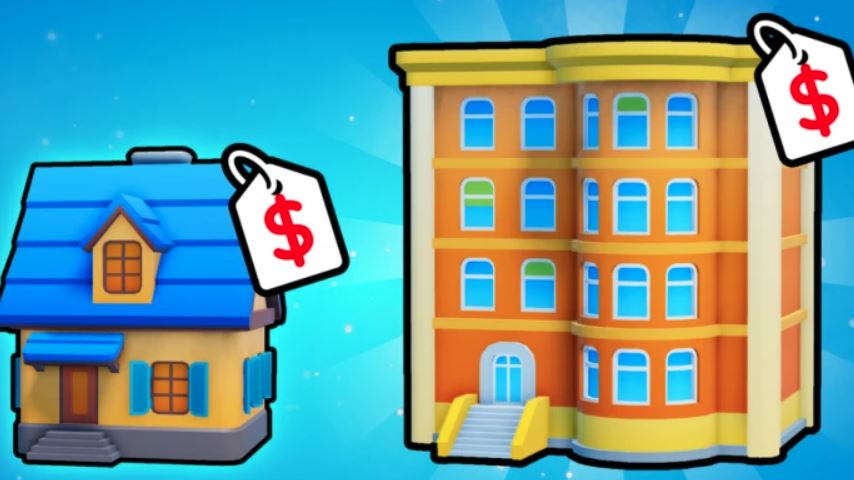
Investor City is a popular Roblox real estate tycoon game where you build a property empire. Whether you’re playing on a computer or a phone, knowing the controls is the first step to success. This guide will walk you through all the essential controls for both platforms and give you practical beginner tips to start earning money fast.
Investor City Gameplay Overview
In Investor City, you start as a property boss with one free house. Your goal is to buy different buildings (like houses or shopping malls), upgrade them, rent them out to tenants for income, and sell properties for profit. A key feature is that your buildings continue to generate money even while you are offline, making it a great game for passive income.
Investor City PC Controls Guide
Playing on a computer offers precision with a keyboard and mouse. Here are the primary controls:
Movement & Camera
Move: Use the W, A, S, D keys.
Look Around / Aim Camera: Move your mouse.
Jump: Press the Spacebar.
Interaction & Menus
Most gameplay is driven by interacting with objects in the world, primarily property boards.
Interact / Select: Left-click with your mouse. Use this to click on property “For Sale” signs, upgrade boards, tenant icons, and menus.
Access Main Menu: Look for the menu button (usually an icon) on your screen and left-click it. This menu often contains codes, stats, and settings.
Teleport to Owned Property: Use the “TP” (Teleport) button found in your main menu or property management screen to instantly travel to buildings you own.
Investor City Mobile Controls Guide
The mobile experience uses a touchscreen interface with virtual buttons.
Movement & Camera
Move: Use the virtual joystick typically located on the left side of the screen.
Look Around: Drag your finger anywhere on the right side of the screen.
Jump: Tap the jump button (often a circular icon with an arrow). The placement of this button is usually adjustable in the settings.
Interaction & Menus
Interact / Select: Tap directly on any interactive object. This includes property boards, “Rent” signs on your buildings, and menu buttons.
Access Main Menu: Tap the menu icon (often three lines or a house symbol) on your screen’s corner.
Teleport to Owned Property: Find and tap the “TP” or teleport button within your property management menu.
Key Actions & How to Perform Them
Regardless of your platform, you’ll use the controls above to perform these core actions:
Buy a Property: Find a building with a “For Sale” sign. Interact with its board (click/tap), then select the purchase option.
Upgrade a Property: Approach one of your owned buildings and interact with its upgrade board. Select the upgrade you want to purchase.
Find a Tenant: For a vacant property, interact with it and select the “Find Tenant” option.
Evict a Tenant: If a tenant stops paying, interact with the property and choose the “Evict” option to remove them and find a new one.
Check Earnings: View your per-minute income and total cash in the main menu or on your property boards.
Beginner Money-Making Tips
Now that you know the controls, use them effectively with these starting strategies:
Claim and Upgrade Your Free House: Immediately go to your free starter house. Use its upgrade board to make it better. This is your first source of rental income.
Buy Cheap Properties First: Start with affordable properties like small houses or apartments. Focus on buying in busier areas of the map where tenants are plentiful.
Upgrade for Higher Rent: Don’t just buy and wait. Invest in upgrades as soon as you can. Each upgrade significantly increases the rent you earn per minute.
Utilize Offline Income: The game’s best feature is passive offline earnings. Before you log off, make sure all your properties are upgraded and have tenants. You’ll come back to a nice sum of money.
FAQ: Investor City Controls and Basics
Q: Can I change the control layout on Mobile?
A: Yes, often you can adjust the position and size of the jump button and virtual joystick in the game’s settings menu.
Q: How do I sell a property?
A: Interact with the board of a property you own. There should be a “Sell” option, which will give you cash back (often less than you paid).
Q: Why can’t I find a tenant for my property?
A: Ensure the property is fully upgraded enough to attract tenants. Also, try different property types or locations.
Q: Do controls differ between iOS and Android?
A: No, the mobile control scheme is generally the same across all phones and tablets, relying on the standard touchscreen inputs.
Q: What’s the first thing I should spend money on?
A: Always prioritize upgrading your existing properties before buying new ones. Higher rent from upgrades will help you buy new buildings much faster.
Conclusion
Mastering the Investor City Roblox controls on both PC and Mobile is the foundation for building your real estate empire. With smooth navigation, you can efficiently buy, upgrade, and manage properties. Remember the core beginner strategy: upgrade your free house, invest in cheap properties, upgrade them for higher income, and leverage the powerful offline earning system. Use these controls and tips, and you’ll be on your way to becoming a top investor in no time.