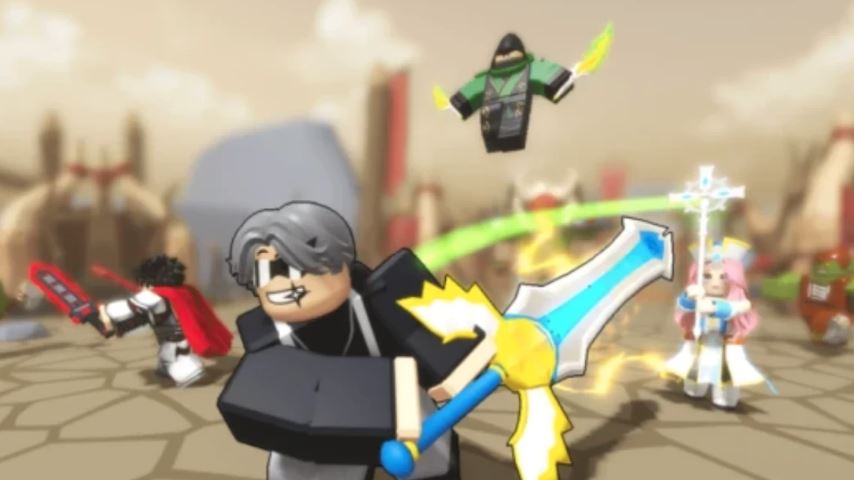
Sword Warriors is a popular Roblox experience that combines endless enemy waves, sword-based combat, and incremental progression. Whether you’re slashing through hordes in the early worlds or facing down tough bosses, understanding the controls is your first step to mastering the game. This guide provides a complete breakdown of Sword Warriors controls for both PC and mobile platforms, along with essential tips to help you progress faster.
Why Mastering Controls is Crucial in Sword Warriors
In Sword Warriors, you’re constantly under pressure from relentless enemy attacks. Efficient movement, timely dodging, and unleashing your skills are key to surviving longer, defeating bosses, and farming coins effectively. A solid grasp of your platform’s controls directly translates to better progression and a more enjoyable experience.
Sword Warriors Controls for PC (Keyboard & Mouse)
The PC version offers precise control using a combination of keyboard keys and mouse actions.
Movement Controls
W / A / S / D Keys: The primary method to move your character forward, left, backward, and right.
Arrow Keys (↑ ↓ ← →): An alternative for moving your character around the map.
Combat & Action Controls
Left Mouse Click: The main attack button. Click repeatedly to swing your sword and damage nearby enemies.
Space Bar: The universal action key. Tap it to perform a Dash (a quick evasive maneuver) or to Jump over obstacles and attacks.
R Key: The Rebirth button. Pressing this will reset your current run in exchange for permanent bonuses like increased damage.
Skill & Menu Controls
Number Keys (1, 2, 3, 4, 5): These keys activate your equipped special skills. You unlock skill slots by spending Skill Points earned through rebirth.
ESC Key: Opens the main game menu, where you can access settings, the shop, and other options.
Sword Warriors Controls for Mobile (Touchscreen)
The mobile interface uses a virtual joystick and on-screen buttons for intuitive touch control.
Movement Controls
Virtual Joystick (Left Side of Screen): A floating directional pad. Drag your thumb on this joystick to move your character in any direction.
Combat & Action Controls
Attack Button (Sword Icon): A large, prominent button, usually on the right side of the screen. Tap it to perform your basic sword attack.
Dash/Jump Button: A separate button (often near the attack button) used to dash or jump.
Skill Buttons (Icons 1-5): Located along the bottom of the screen. Tapping these icons activates your equipped special skills.
Menu & Rebirth Controls
Menu Button (Three Lines/Hamburger Icon): Typically found in the top-right or top-left corner. Tapping it opens the main game menu.
Rebirth Function: Accessed through the in-game menu. You need to navigate to the Rebirth section and confirm to perform a reset.
Key Differences: PC vs. Mobile Controls
Precision vs. Accessibility: Keyboard and mouse allow for extremely precise movement and quicker skill activation. Touchscreen controls are more accessible but can be less precise during fast-paced combat.
Layout: PC controls are spread across the keyboard, while mobile controls are consolidated on the screen.
Camera Control: On PC, you can freely control the camera angle by moving the mouse. On mobile, the camera is usually fixed or adjusts automatically.
Essential Tips for Better Control and Faster Progress
Master the Dash: Your dash (Spacebar/ Dash button) is your best survival tool. Use it constantly to avoid enemy swarms and boss attacks.
Prioritize Upgrades: Focus your early coins on upgrading Attack Speed and Damage to clear waves faster.
Utilize Skills: Don’t forget to use your skills (keys 1-5). Skills like the dash with invincibility frames (iframe) are invaluable for survival.
Rebirth Strategically: Perform rebirths when progress slows down. The permanent bonuses are essential for tackling higher worlds.
Start with the Basics: Use the starting sword and unlock the Sword Master hero first for a balanced beginning.
Progression Order: Comfortably clear Worlds 1 through 6 before attempting the challenging Endless Mode.
Frequently Asked Questions (FAQ)
Q: What is the most important button in Sword Warriors?
A: The Dash/Jump button (Spacebar on PC) is arguably the most crucial. It’s essential for dodging damage and surviving longer.
Q: How do I get more skill slots on mobile?
A: Skill slots are unlocked by spending Skill Points, which you earn every time you perform a Rebirth. The controls for activating the skills are the numbered buttons/icons.
Q: Can I change the control layout on PC or mobile?
A: As a Roblox game, Sword Warriors typically uses the default Roblox control schemes. Extensive key rebinding is not usually available within the experience itself.
Q: I’m a beginner. What should I focus on first?
A: Focus on learning the movement and attack patterns. Grind in World 1 to upgrade your basic stats (Damage, Speed), perform your first few rebirths, and get comfortable with the dash mechanic before moving on.
Q: Is it better to play on PC or mobile?
A: PC generally offers more precise controls, which can be an advantage in hectic late-game stages. However, mobile is perfectly viable for casual play and progression.
Conclusion
Understanding the Sword Warriors controls is the foundation of your journey from a novice to a master sword fighter. Whether you prefer the precision of a PC’s keyboard and mouse or the convenience of a mobile touchscreen, knowing every button’s function will drastically improve your gameplay. Remember to dash often, use your skills wisely, and strategically use rebirth to grow stronger. Now that you’re equipped with this knowledge, dive back into the game, apply these tips, and watch your progression soar.